Payments & Subscription
Use Payments & Subscription to manage billing and plan settings in one place. This page shows your Current Balance, lets you upgrade/downgrade using the preset-first plan selector, top up with USDT/USDC, and download Invoice/Receipt PDFs.
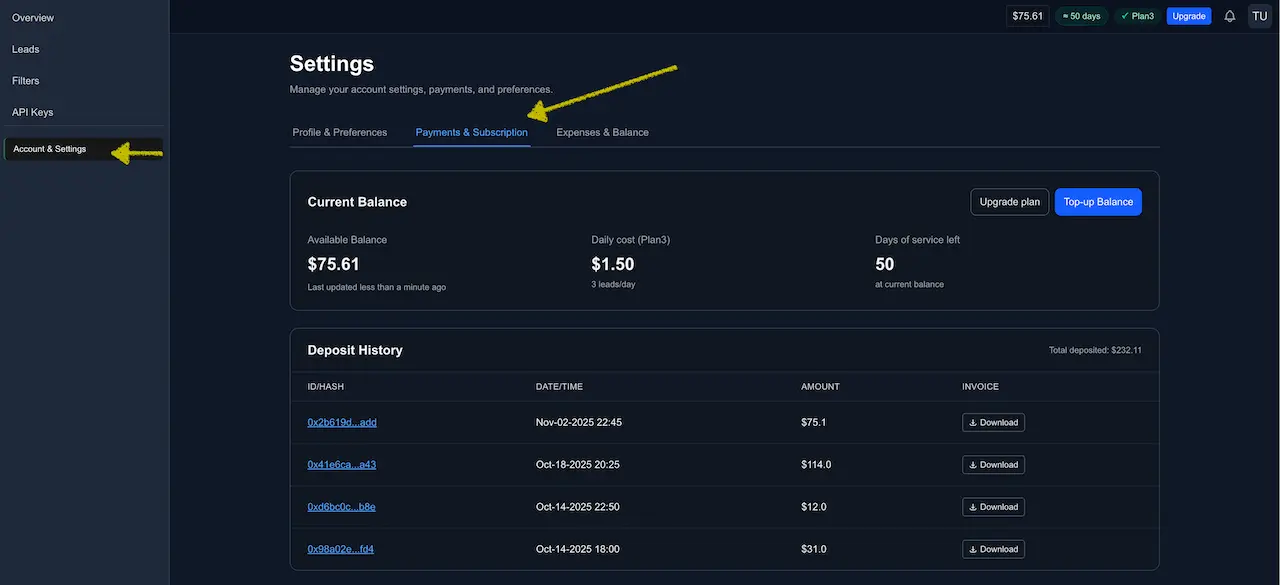
Current Balance
The Current Balance card summarizes:
- Available balance — funds you can spend on leads.
- Daily cost — the daily spend for your current plan (e.g., 3 leads/day → $1.50).
- Days of service left / balance runway — estimated days remaining at your current daily cost.
Buttons:
- Upgrade plan — open the plan selector to change daily quota.
- Top‑up Balance — add funds via the guided deposit flow.
Upgrade or downgrade your plan
Click Upgrade plan to open the plan selector. If you already have a paid plan, the selector defaults to your current plan. Otherwise it defaults to Starter: 2 leads/day.
Choose one of the starting points:
- Starter — 2 leads/day.
- Growth — 10 leads/day.
- Scale — 50 leads/day.
- Custom — 2-1,000 leads/day.
The selector shows Leads/day, Cost/day, Estimated 30 days, and Balance runway before you confirm. The change takes effect after confirmation and the delivery interval ≈ 24h ÷ quota. See Plans — Upgrade, Downgrade, Refunds & Pause for details.
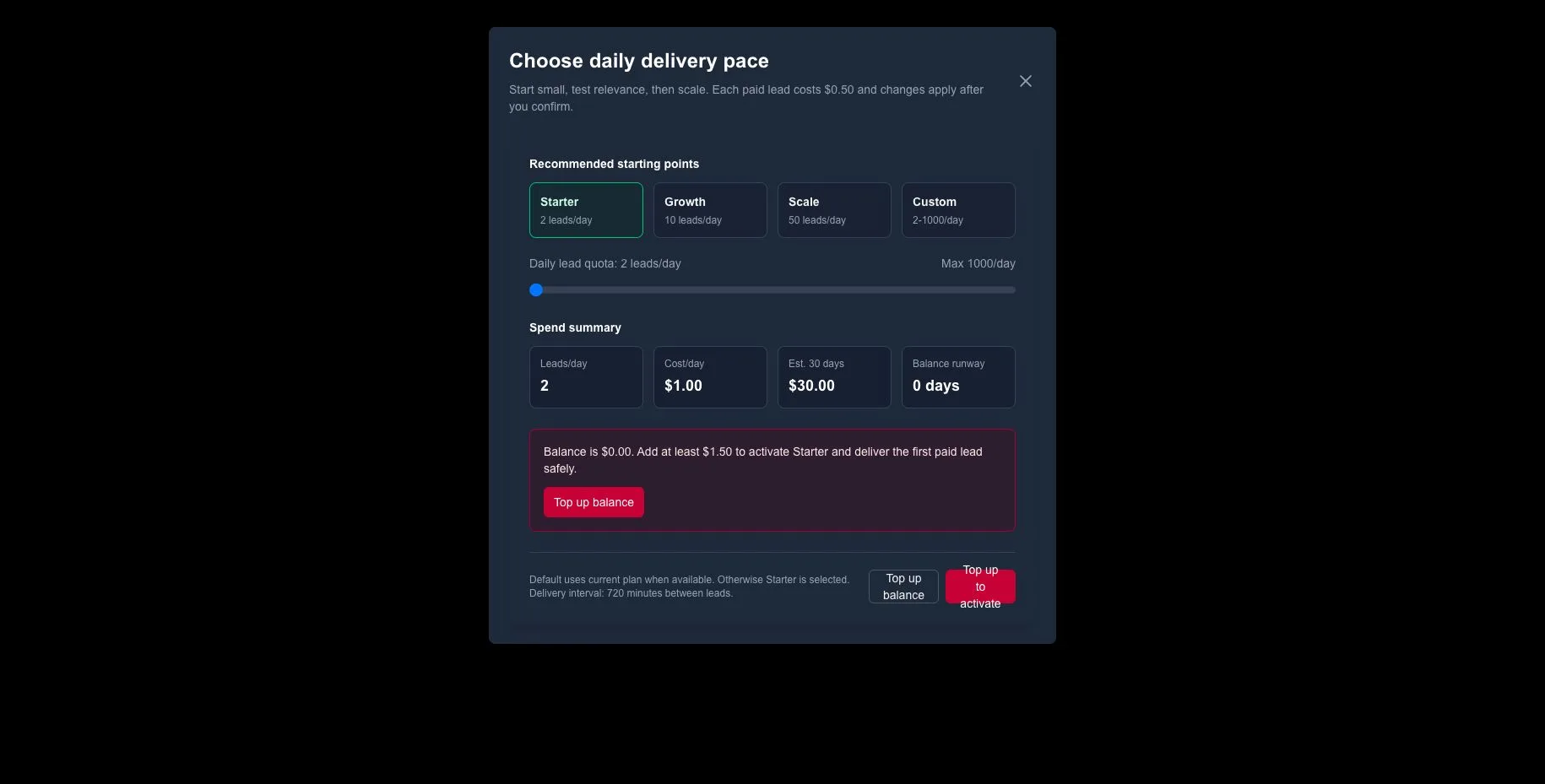
If the selected pace needs more balance, the selector shows an inline top-up state with the amount needed to activate safely.
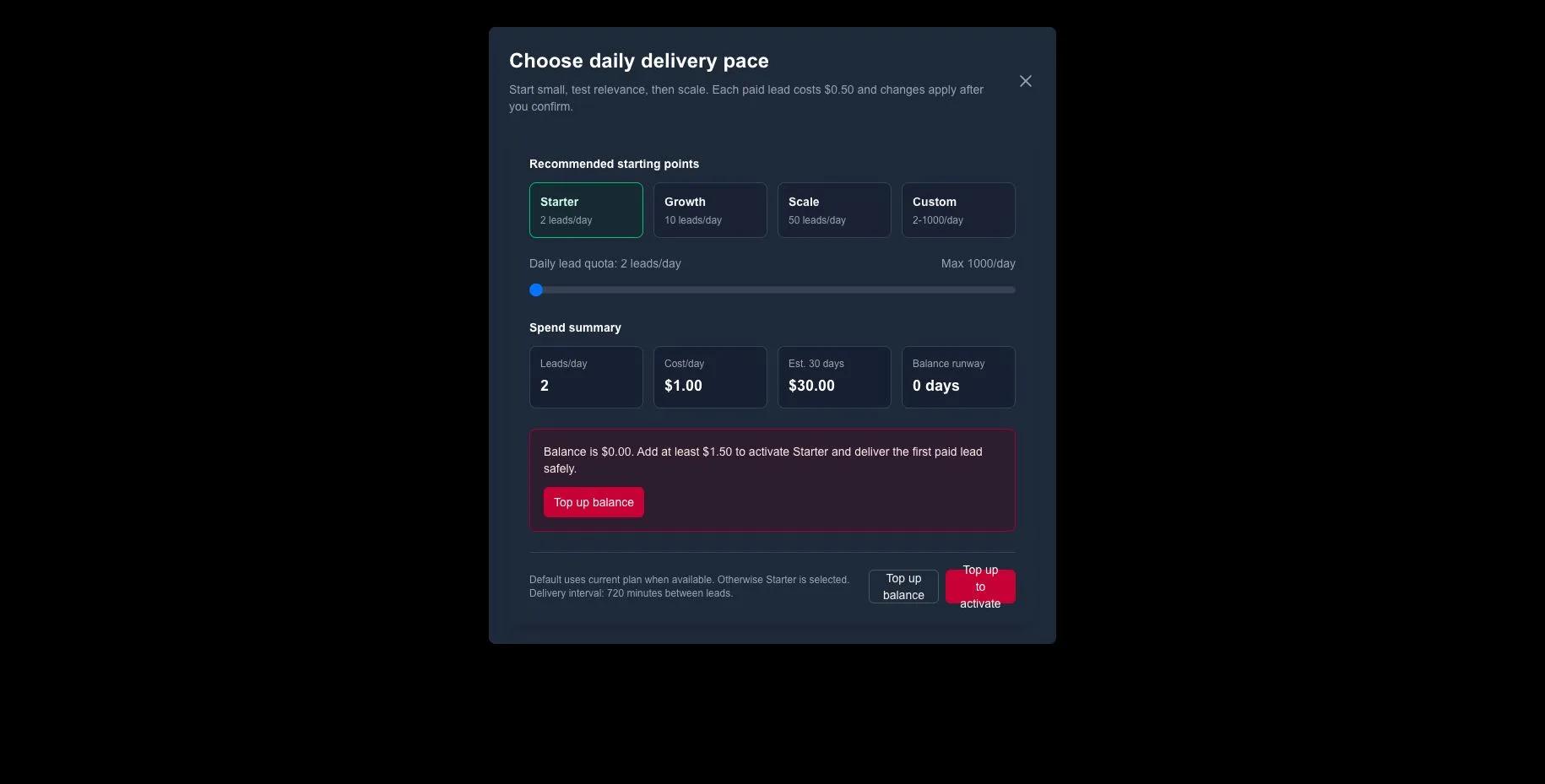
High-spend plans can require an additional confirmation step so you can review the daily and 30-day estimate before activation.
Top up your balance (USDT/USDC)
Click Top‑up Balance and follow the Top‑Up (Deposit) Flow:
- Choose USDT or USDC.
- Pick Ethereum (ERC‑20) or BNB Smart Chain (BEP‑20).
- Confirm the selection and send the funds to the monitored address. We monitor every ~2 minutes for ~30 minutes and update your balance after on‑chain confirmation; the downloadable Invoice/Receipt is generated once the deposit is matched.
For the full step‑by‑step, see Top‑Up (Deposit) Flow.
Payments are non‑refundable and not withdrawable. Balances and promo credits can be spent only on leads delivered by LeadGenCrypto. See Plans — Upgrade, Downgrade, Refunds & Pause.
Deposit History
The Deposit History table lists your confirmed deposits with:
- ID/Hash — clickable transaction reference.
- Date/Time — when the deposit was matched.
- Amount — credited value.
- Invoice — a Download button for the combined Invoice + Receipt (PDF).
A Total deposited summary appears in the top‑right of the table. If Download isn’t visible yet, the system is still finalizing the match — check again after a short while. For what the PDF contains, see Invoices & Receipts.
First‑day checklist
- Review today's free lead and tune Filters & Exceptions before funding automatic delivery.
- Use the plan selector to choose an initial pace, such as Starter.
- Top up a small amount (minimum 10 USDT or USDC) if the selector shows insufficient balance.
- Download the latest Invoice/Receipt for your records.
- Review Balance runway to confirm how long the selected pace can run.
Common states & what to do
- Wrong chain/asset used for deposit → Funds must match the selected token and network. Start a new Top‑up and retry with the exact pair from Step 1–2 of the flow.
- Invoice not available yet → The deposit is still being matched; refresh in a few minutes. If needed, copy your tx hash and email hello@leadgencrypto.com.
- Balance runway seems low → Reduce your daily quota in the plan selector or top up to extend runway.
- Need to pause spend temporarily → Use Pause delivery on the Leads page; the countdown freezes and resumes where it left off.
Power tips
- Keep a buffer balance so deliveries aren’t interrupted while deposits confirm.
- Adjust the daily quota in small steps; watch Cost/day, Estimated 30 days, and Balance runway after each change.
- Export your Expenses & Balance ledger for bookkeeping and audit trails → Expenses & Balance.
- Open Payments & Subscription: https://dashboard.leadgencrypto.com/settings/payments