Leads
The Leads page lists projects delivered to your account (newest first). Each row includes Website, Token address (copy icon / external link), Blockchain, Token symbol/name, and verified Email(s) / Telegram. Use Export → CSV to download what you see. You can also pull the same data programmatically via the Public API to connect your CRM or other tools.
Free vs Paid
Both plans deliver verified token‑project leads—the difference is cadence and volume. The Free plan lets you claim 1 free lead every 24 hours so you can review quality before funding automatic delivery. The Paid plan delivers leads automatically at your chosen daily quota (2–1,000/day) with Pause/Resume controls. Both plans support CSV export and API access.
Free
After a successful sign‑up, open the Dashboard and click Get today's free lead. You can also open the Leads page to review delivered leads and export them.
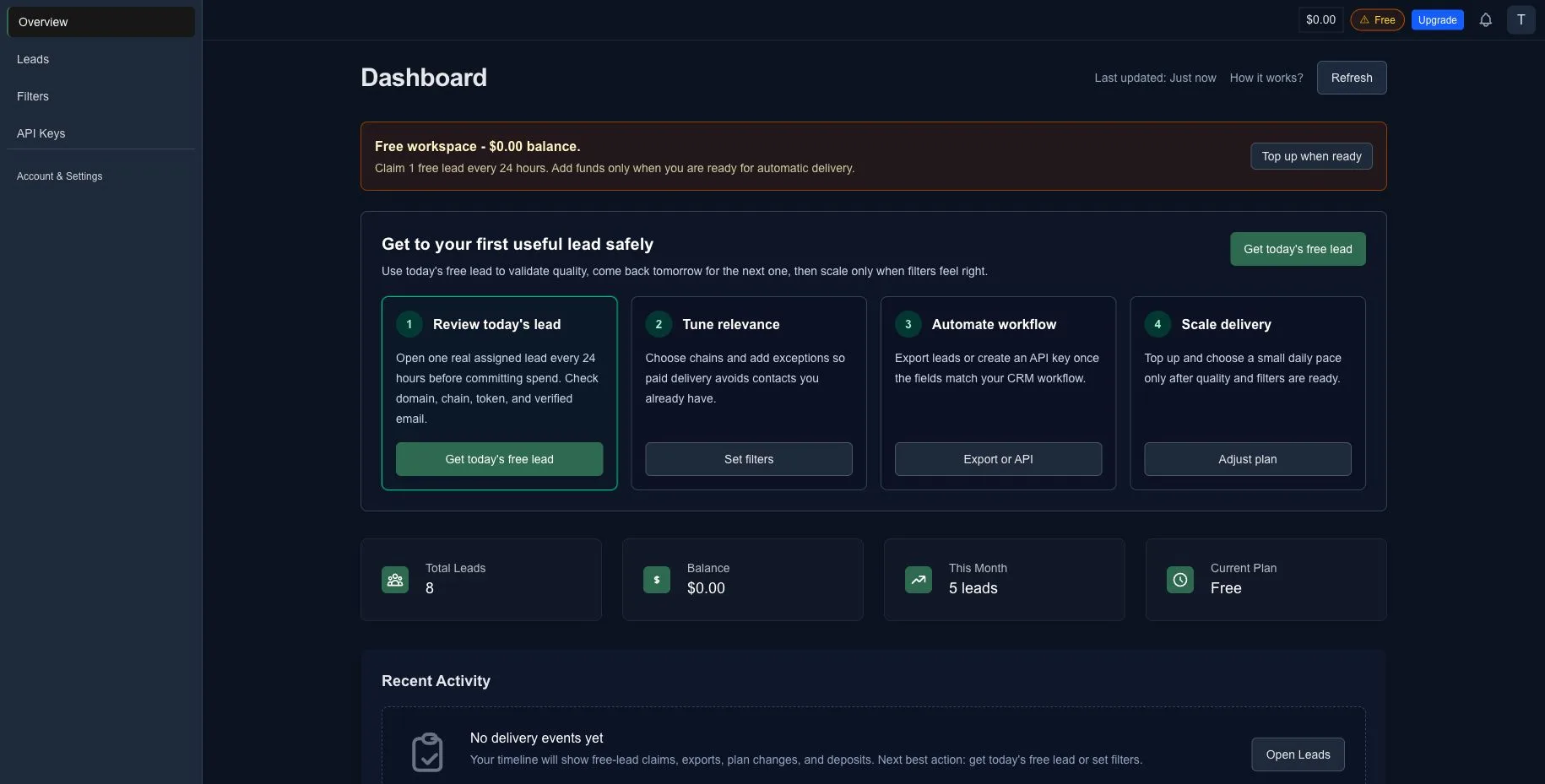
Once you claim today's lead, it appears in the same table as paid leads. If you already claimed one in the current 24-hour window, the app shows when the next free lead is available.
1) Lead row
Your first row is the delivered lead. It includes Website, Token address, Blockchain, Token symbol/name, a verified Email (one or two), and Telegram (when present). On the Free plan you manually claim today's free lead each time the 24‑hour window resets. To automate intake, top up and choose a paid delivery pace, starting as low as Starter (2 leads/day).
You don’t need to exclude emails or token URLs that LeadGenCrypto has already delivered to your account. We automatically avoid re‑sending the same primary email or the same token URL to the same account.
Use Exceptions when you want to skip contacts you already had from other sources (CRM, prior lists, campaigns), or to suppress whole projects/domains proactively.
Edge case: if a project later uses a different email address (or a new token URL) it may appear as new. Add those to Exceptions if you want to suppress any variant for that project.
2) 24‑hour cooldown timer
After you claim a free lead, a countdown appears showing when your next free lead is available. Claim today's free lead, review it, and come back tomorrow for the next one. Free leads are synchronized across free accounts within the same window.
3) Plan selector
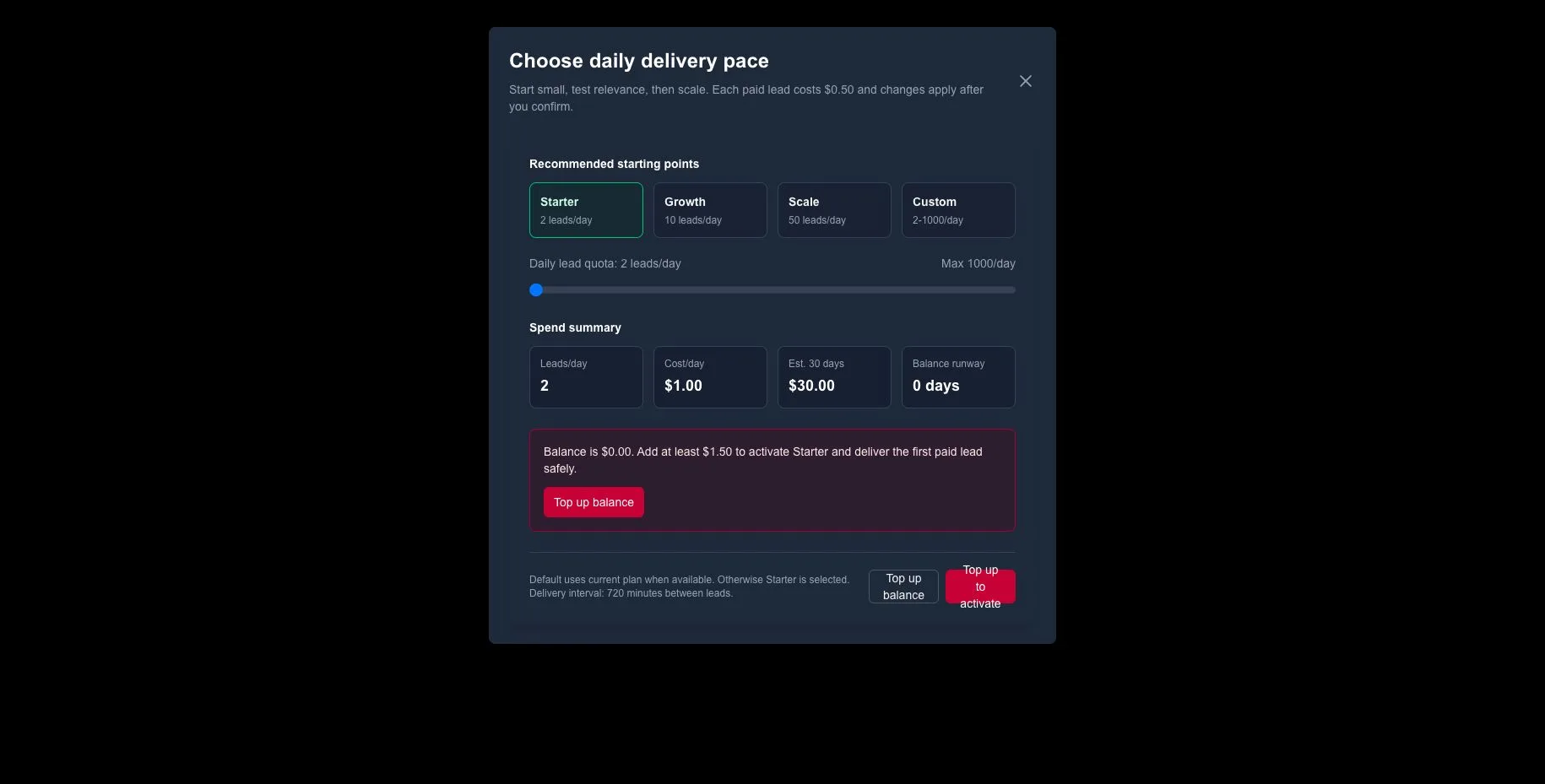
Use the preset-first plan selector when you are ready for automatic delivery. The default is your current plan if you already have one; otherwise Starter is selected at 2 leads/day.
The presets are Starter, Growth, Scale, and Custom. The selector shows Leads/day, Cost/day, Estimated 30 days, and Balance runway before you confirm.
Paid
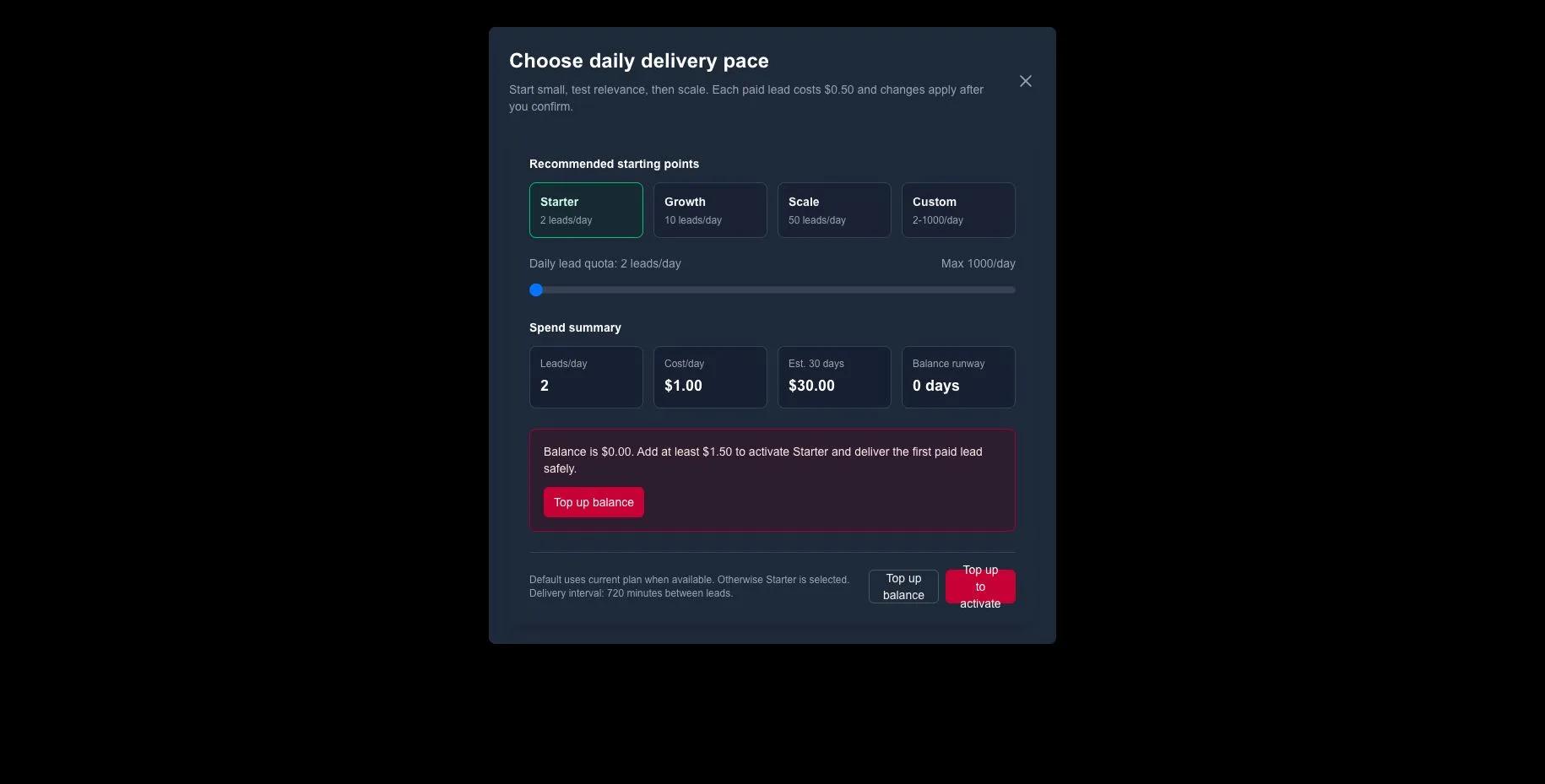
After a successful sign‑up, click Upgrade in the header or Adjust plan in the dashboard cockpit to open the plan selector.
Choose a preset or use Custom to choose how many paid leads you want per day (2–1,000/day). If your balance is too low, the selector shows an inline top-up state instead of pretending the plan can start immediately.
Once a paid plan is active, the Leads page shows these additions:
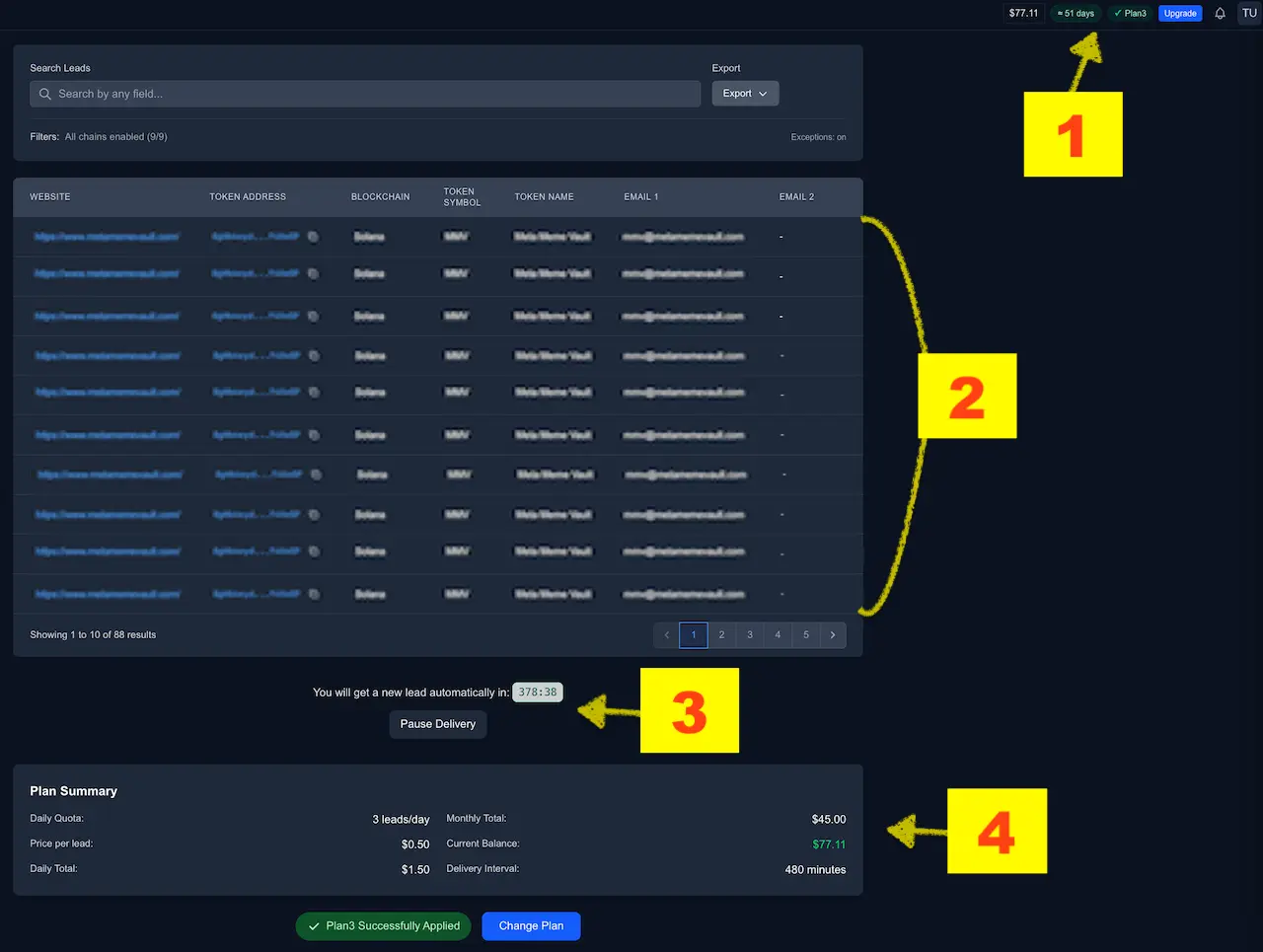
1) Updated header
The header displays your current balance and current plan. You can change delivery pace at any time from the preset-first plan selector.
2) Leads table
Leads are delivered to the Leads page automatically. Each row includes Website, Token address, Blockchain, Token symbol/name, verified Email(s), and Telegram (when present).
3) Countdown & Pause
A countdown shows: “You will get a new lead automatically in: HH:MM:SS”.
The delivery interval ≈ 24 h ÷ your daily quota (e.g., quota 3/day → ~8 h between leads; 24/day → ~1 h; 1000/day → roughly 1–2 min).
Use Pause Delivery / Resume to temporarily stop and restart intake; the countdown freezes while paused—useful if you need to adjust your CRM or workflows.
4) Plan Summary
This panel shows your leads/day, price per lead ($0.50), daily/monthly cost, current balance, and the delivery interval so you always know your spend and cadence. In the plan selector, also check Estimated 30 days and Balance runway before activation.
Leads — Search & Export

1) Search
Use the Search bar to filter your delivered leads by any field (domain, email, chain, symbol, etc.). For example, type ethereum to show only projects on the Ethereum blockchain.
2) Export
Open Export and choose:
- Export to CSV — download the current view.
- Automate with API — pull the same data programmatically; see Public API.
- Export to CRM — jump to CRM‑oriented options.
Power tips
- Use Filters & Exceptions to keep relevance high and costs low.
- For integrations, call
viewRecentLeads(last 24 h) orviewLatestLeads(withlimit) via the Public API.